Guides/Article
How to Add a Caption Under an Artwork Photo (Without Photoshop)
7 min read · Updated September 16, 2026
A caption in a social post disappears when someone screenshots the work. A caption under the artwork photo travels with the image — artist, title, year, and medium stay attached wherever the file goes.
You do not need Photoshop. This guide shows a simple browser workflow to place a museum-style label under your photo, plus what to write in that label. For the field order, see How to Write a Caption for a Painting (Artist, Title, Year, Medium). For copy-paste blocks, see Artwork Caption Template: Copy-Paste Museum Labels for Paintings (Free Examples).
Why the caption should live on the image
Platform captions get cropped, ignored, or stripped in reposts. When the label is part of the image file, credit survives Stories shares, press downloads, and “save image as.”
- Instagram and portfolio grids keep the credit visible in the frame
- Press and collaborators receive a file that already identifies the work
- Your own archive stays searchable years later
What to put under the photo
Keep the same short tombstone you would use on a wall label. Four core lines are enough for most posts:
Artist Name
Title of the Work, Year
Medium; dimensions
Courtesy of the artist
A no-Photoshop workflow (browser only)
Use a tool that adds the label under the image on your device — no design file, no layered PSD.
- 1. Photograph or export a clean artwork image (straight, even light)
- 2. Write or paste your caption text (artist, title, year, medium)
- 3. Place the caption under the image and preview
- 4. Export a JPEG or PNG and publish that file
Step-by-step with ArtCaption
ArtCaption runs in your browser: drop the photo, paste the caption, and export. Your artwork stays private — nothing is uploaded to our servers.
- Open ArtCaption and add your artwork image
- Type or paste the caption in one field (Enter for new lines)
- Check the live preview — adjust alignment if needed
- Continue to export for web or print
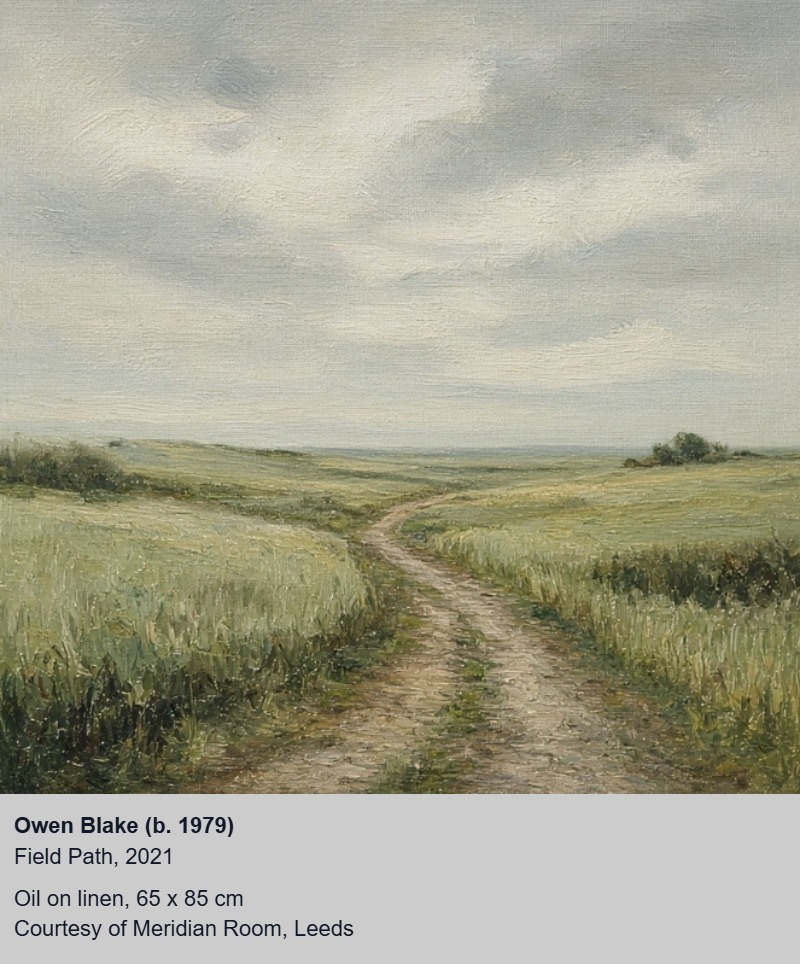
Owen Blake
Field Path, 2021
Oil on linen; 65 × 85 cm
Courtesy of the artist
Short vs extended under-image captions
Match length to the channel. Do not invent a second title for social.
Short (Instagram / grid)
Owen Blake
Field Path, 2021
Oil on linen; 65 × 85 cm

Extended (press / PDF)
Owen Blake (b. 1979)
Field Path, 2021
Oil on linen; 65 × 85 cm
Courtesy of Meridian Room, Leeds

Another short example
Iris Conti
Salt Air, 2023
Acrylic on panel; 40 × 50 cm

Another extended example
Kenji Mora (b. 1991)
Night Platform, 2024
Oil on canvas; 70 × 100 cm
Courtesy of the artist and South Pier Studio
Photo tips so the caption looks intentional
A clean source image makes the label read as documentation, not a sticker.
- Crop tight to the artwork; avoid busy room clutter
- Keep lighting even — no harsh glare on varnish
- Leave enough bottom margin in the final export for the text block
- Use one caption style across your whole portfolio
Common mistakes when adding captions to photos
Avoid these shortcuts:
- Putting credit only in the Instagram caption field
- Tiny text that disappears on mobile
- Different title spelling on the image vs your website
- Watermarks that hide the work instead of identifying it
- Skipping medium so the file stays ambiguous later
Add the caption under your photo with ArtCaption
Drop your artwork image into ArtCaption, paste your museum-style lines, and export a captioned file for social, portfolio, or press — without opening Photoshop. Processing stays private in your browser.
FAQ
- Can I add a caption under an artwork photo without Photoshop?
- Yes. Use a browser tool like ArtCaption to place artist, title, year, and medium under the image and export a new file — no design software required.
- Why put the caption on the image instead of only in the post text?
- Post text is easy to lose in screenshots and reposts. A caption under the photo keeps credit attached to the file wherever it travels.
- What text should go under my artwork photo?
- At minimum: artist, title, year, and medium. Add dimensions and a courtesy or collection line when useful.
- Will ArtCaption upload my artwork to a server?
- No. ArtCaption processes the image in your browser so your artwork stays private on your device.
Related guides
- How to Title a Painting: Clear Artwork Names for Galleries, Sales, and Online Captions
- Free Museum/Exhibition Label Generator (No Design Skills Needed)
- How to Write a Caption for a Painting (Artist, Title, Year, Medium)
- Artwork Caption Template: Copy-Paste Museum Labels for Paintings (Free Examples)
- Artwork Captions for Collectors: Catalog Your Collection Like a Museum
- Artwork Captions for Auction Houses: Consistent Credits from Catalog to Bid Room
- Exhibition Labels for Galleries: Consistent Captions Across Shows, Social, and Press
- Artwork Captions for Emerging Artists: Look Professional Before the Gallery Does
- Why Every Artwork Photo Needs a Caption Online
- How to Write an Exhibition Wall Label
- Museum Artwork Caption Examples (Painting, Photo, Sculpture)
- How to Write a Museum-Style Artwork Caption
Create your caption next
Upload an artwork image and generate a clean museum-style caption in seconds — privately on your device.
Add a Caption